
Goal
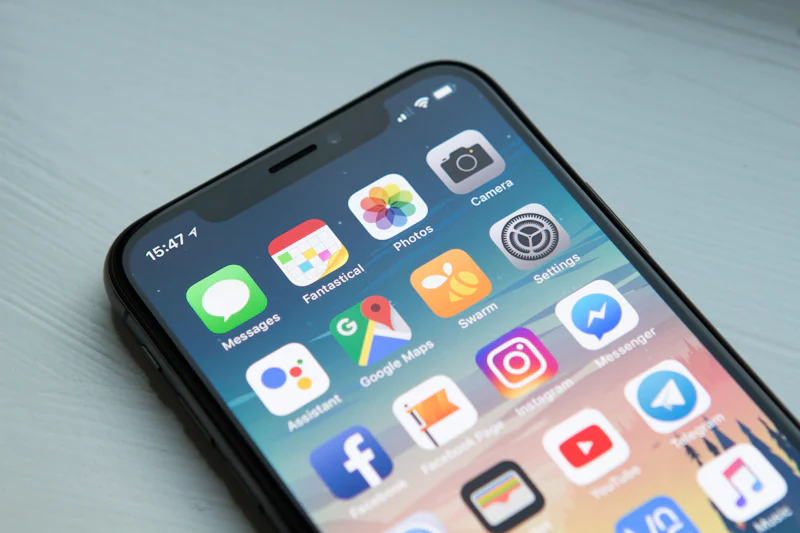
Get a clean, high-resolution still from a public Pinterest pin onto your phone—for wallpapers, mood boards, or offline reference—without relying on long-press alone (which sometimes saves a smaller preview).
Shared steps (Android & iPhone)
- Open the image pin and copy its link.
- Paste into pintdown.site/image and run download.
- Choose the largest resolution offered when multiple sizes exist.
- Save to Gallery (Android) or Photos (iPhone) via the browser share/download UI.
Android
Chrome stores the file in Downloads. Open it and tap Add to gallery / Move if your OEM separates Downloads from Photos. For wallpapers, open the image in Photos → Use as → Wallpaper and crop for home/lock screen.
iPhone
In Safari, download or long-press the image → Add to Photos. If you only see a blurry preview, re-run the pin through PintDown and pick a higher resolution when listed.
Image quality notes
PintDown cannot upscale beyond the originals Pinterest hosts. If the pin was uploaded small, the download will be small. Prefer pins that look sharp when zoomed on Pinterest itself.
Related tools
Video pins: /video. Whole boards: /board. Animations: GIF vs MP4.